The Runbook 4 of 4
Did Your AI Actually Read the Doc?
How to give ChatGPT and Claude the same project notes in one Google Doc, and test whether a new chat can use them.
How this is checked 38 claims · 35 verified at the source · last checked 16 Oct 2026
- What would prove it wrong
- The piece is wrong, and does not ship as written, if any of these holds at publish time:
- ChatGPT or Claude cannot read a private repository on the plans the article names (C3, C4);
- any step needs a terminal or a paid plan for the core setup (C1, C2);
- the assistant's own Projects feature already shares one project across ChatGPT and Claude (it would make GitHub unnecessary for the main reader).
- Evidence
- 38 claims: 35 verified at the primary source, 3 from runs made for the piece and 1 struck before publication.
Yesterday you and ChatGPT settled the plan. Today’s chat has never heard of it, and Claude never saw it either. So you paste it in again, and whatever you forget to paste gets decided twice.
This guide puts the plan in one Google Doc that both assistants read, in three steps, then gives you a test that shows whether a new chat is reading the current version. If you only use one assistant, its built-in Projects feature keeps your notes across chats in that app, which may be all you need.
Connect both assistants to Google Drive
Use the Google account you will keep the doc in. Connecting lets each assistant search everything that account can open, including files far beyond this doc. If Google says your organisation blocks it, your admin has to allow it.
Claude. Open Claude’s connector settings, click the + next to Google Drive, and sign in to Google. A tick means it’s already connected. Anthropic offers this on every plan, Free included; on Team and Enterprise, an Owner has to add it first.
ChatGPT. Open ChatGPT and click Plugins in the left sidebar. If Google Drive shows a +, click it and sign in to Google. OpenAI doesn’t list which plans include it; it was there on our Plus account. If Google Drive isn’t there, use the doc with Claude and paste its text into ChatGPT when you need it there. That copy won’t update itself.
Make the doc
Create a Google Doc in that same Google account, with a name no other file in your Drive uses, paste this in, fill in the brackets, and swap the example decision for one of yours. Keep everything in the body of the doc, not in comments, which some connections can’t read.
ABOUT THIS PROJECT
Goal: [what this project is for, in one sentence]
Audience: [who the work is for]
Current priority: [the next specific task]
Rules for any AI:
Read this whole document before you start.
If you cannot open it, say so. Do not guess.
Link a source for every fact. Say when you are unsure.
Never publish, send or spend anything without asking me.

DECISIONS (newest at the top; a newer line wins)
2026-10-15: Link every statistic. Why: one went untraced.
Each time you settle something, add it as a new first line under DECISIONS, with the date. A decision made in a chat isn’t in the doc until someone writes it there.
Start every chat the same way
Claude. Open a new chat in Claude, click the + in the message box, then Connectors, then Add from Google Drive. Search for the doc, tick it and click Add to chat. Anthropic says Claude re-reads it each time you send a message, so your latest edits reach it.
ChatGPT. Open a new chat in ChatGPT, type @ at the start of your message and pick Google Drive from the list.
In both apps, put the prompt below in that same first message. It tells the assistant which doc to open:
Open my Google Doc "[doc name]" and read all of it.
Tell me the current priority and the newest decision.
Then help me with: [task]
The test
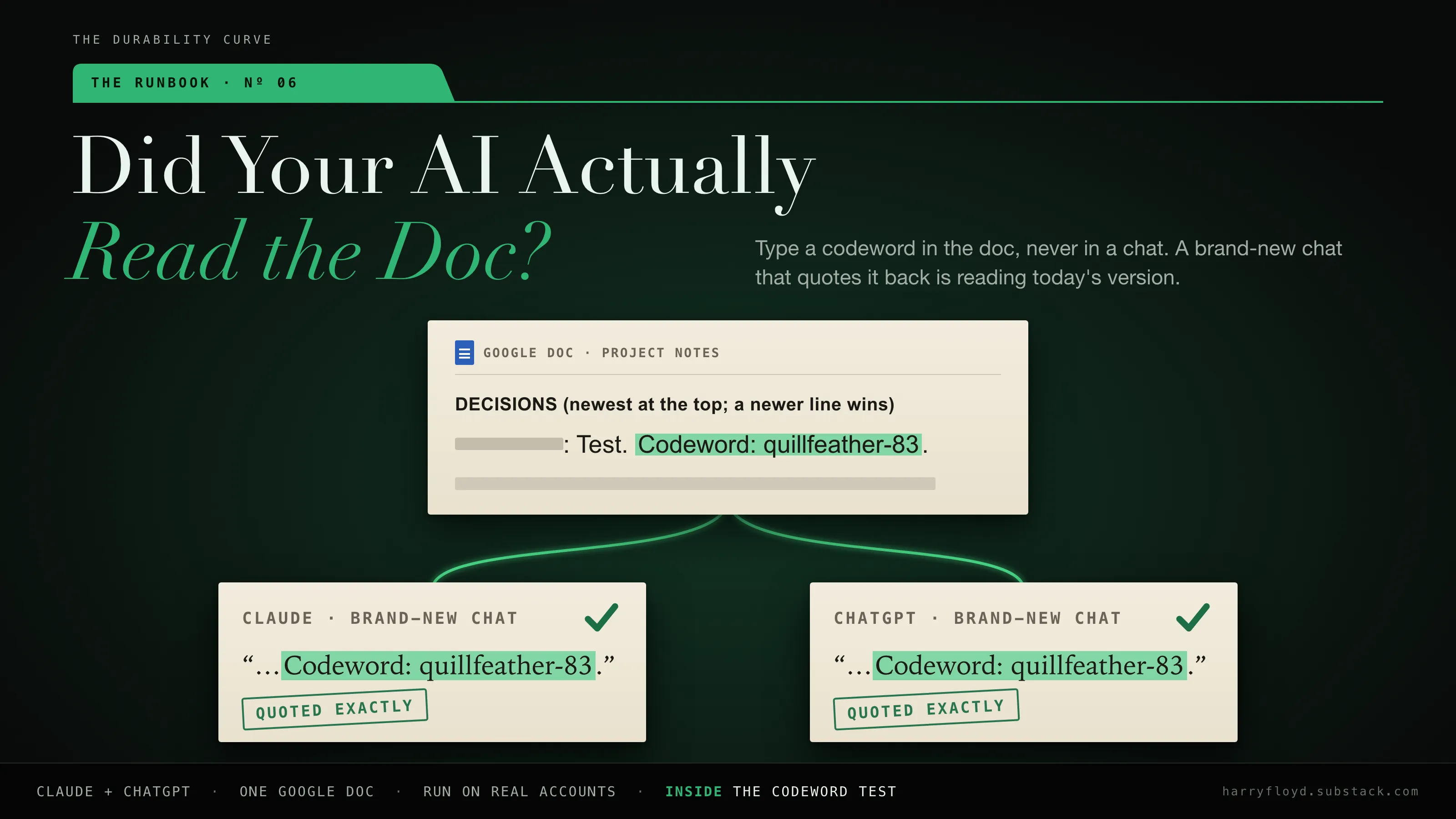

Both assistants can remember earlier chats, and an answer from memory sounds the same as an answer from the doc. An AI can even cite a source it never read. So give the doc a word no chat has seen.
Type a new first line under DECISIONS with today’s date and a word you make up. Type it in the doc only, never in a chat.
[today's date]: Test. Codeword: [your made-up word]In each assistant, open a brand-new chat, attach the doc as in step 3, and ask:
Open my Google Doc "[doc name]".
Quote the first line under DECISIONS exactly,
and name the doc you opened.- It quotes today’s codeword. It fetched the current doc. Go on to the second question below.
- It quotes anything else. It didn’t fetch the current doc. Check you attached the right one, then try once more in a new chat. If it still fails, don’t rely on that assistant for this project yet.
- It can’t find the doc. Check that the Google account you connected in step 1 is the one that owns the doc.
Quoting a line shows it can fetch the doc. To check it can use it, ask in the same chat:
Which decisions are settled, and what should you do next?It should name your current priority and leave everything under DECISIONS settled. If it reopens a decision or picks other work, make that decision or the current priority clearer in the doc and ask again. We ran both questions in Claude and ChatGPT on 15 October 2026: both quoted the codeword, and both followed the newer of two conflicting decisions.
Delete the test line afterwards. Rerun the test with a new codeword whenever you change assistant, plan or settings.
When to move it to GitHub
Skip this unless you want your assistants to hand work to each other. A repository on GitHub is a project folder that keeps every version of its files, and a change there can set an assistant working once you have set up a task to watch for it. On ChatGPT Plus or Pro, you can create a task in Work that starts by itself when someone opens a pull request, GitHub’s name for a proposed change. OpenAI names only Gmail, Slack and GitHub as triggers for these tasks, so a Google Doc isn’t one of them. On a paid Copilot plan, you can hand a task to Copilot, GitHub’s own assistant, or (in preview) to Claude or OpenAI’s Codex, and get a proposed change back to review.
To move, you need a free GitHub account. Signed in, open github.com/new, type a name, choose Private, add a README, and click Create repository.
Open README.md, click the pencil at the top right of the file to edit it, and replace its text with this, filled in from your doc:
# [Project name]

- Goal: [what this project is for, in one sentence]
- Audience: [who the work is for]
- Current priority: [the next specific task]

## Rules for any AI

- Read README.md and DECISIONS.md before you start,
  and tell me which files you read.
- If you cannot open a file, say so. Do not guess.
- Link a source for every fact. Say when you are unsure.
- Never publish, send or spend anything without asking me.
Click Commit changes…, then Commit changes in the box that opens, leaving it on the main branch. Click the repository’s name at the top to go back to its main page, then click Add file, then Create new file, and name it DECISIONS.md. Paste this, replace the example line with your decisions from the doc, newest first, each starting with a dash, and save it the same way:
# Decisions (newest at the top; a newer line wins)

- [date]: [what you decided]. Why: [why]
The doc and the repository won’t update each other, so edit only the repository from then on. For ChatGPT, add GitHub from Plugins, as in step 1, and give it access to this repository (OpenAI’s steps); a new repository can take about five minutes to appear there. For Claude, add the repository to a chat or a project (Anthropic’s steps); in a project, select Sync now after you change a file.
Neither connection can write, so you or a coding assistant make the changes. A connection only gives access, so open each chat by asking for README.md and DECISIONS.md. To run the test here, put the codeword line, starting with a dash, at the top of the list in DECISIONS.md and ask a brand-new chat to quote the first decision in DECISIONS.md exactly, then delete the line. We run our own team of assistants this way, and each one needed its own trigger, because the repository tells nobody when new work arrives.
Two rules
Keep passwords and private details out. Deleted text can usually be brought back from the doc’s version history, so if a password gets in, change it.
Treat text other people add as a stranger’s instructions. If you share the doc, anyone who can edit it can write something your AI will read and may follow. Invariant Labs showed this in a May 2025 demonstration: a message they planted in a GitHub issue steered an AI agent into leaking private data.
Comments are on the Substack copy. If an essay was worth one, buy me a coffee.
Claude and ChatGPT can search this archive and its claim ledgers once you add the connector.